
Get an AI Code With API key
Follow the four steps below and in a minute or two you will have an API key starting with sk-. Paste it into Crush, Kimi Code, Goose, Kilo Code, Open WebUI and other tools. Pay as you go.
If you are logged in, this opens API Keys directly; otherwise you log in or create an account first.
Steps
1.Log in
Open the login page https://aicodewith.ai/en/login, enter your email and password, and click Login. No account yet? Create an account first. Landing on the usage records page means you are logged in; if a Message Center announcement pops up, close it first.
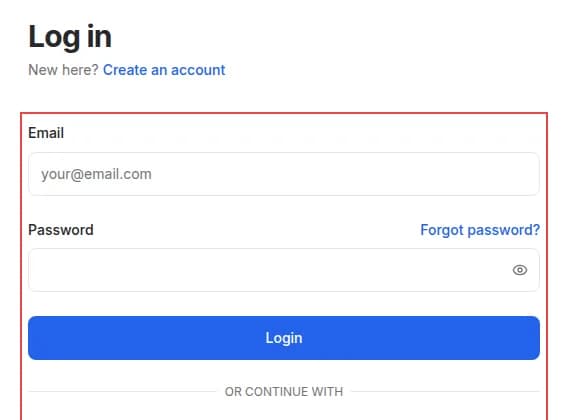
Open aicodewith.ai/en/login. The heading is Log in; enter your email and password, then click Login (or create an account first) 2.Open API Keys
Open API Keys in the console (/en/dashboard/api-keys). When you see Create Key at the top right, click it.
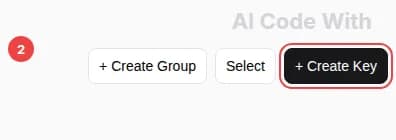
On the English API Keys page, the top-right controls are Create Group, Select, and Create Key 3.Create a key
In the Create API Key dialog, enter a Key Name. The group is optional. Click Create Key.
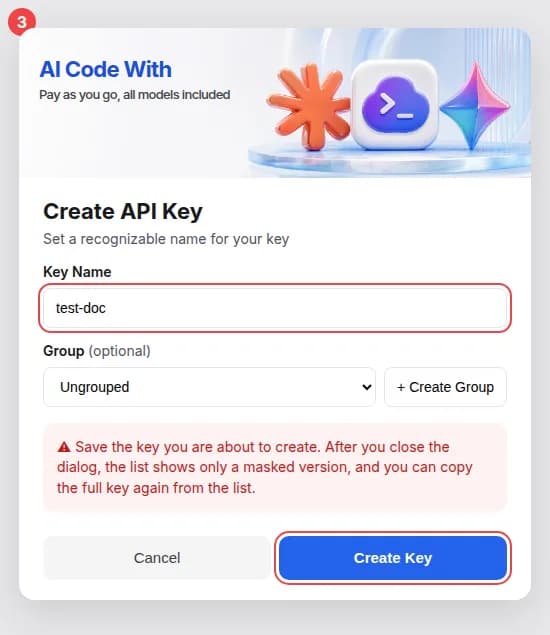
English Create API Key dialog: Key Name, optional Group, and Create Key. This is the console dialog, not a record of a live key being created 4.Copy and save it
API Key Created Successfully means the key is ready. Copy it and click I've Saved It Securely. The pasted key starts with sk-; our docs always write it as sk-***.
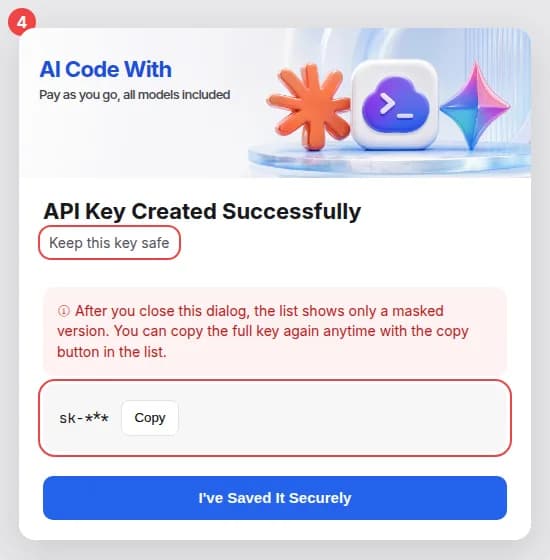
English API Key Created Successfully dialog. The key is the documentation placeholder sk-***, not a key created for this screenshot
Keep your key safe
- Do not paste the key into group chats, screenshots or public repositories.
- If a key leaks, delete it in API Key Management and create a new one.
- You can create one key per tool to see usage separately.
After you have the key
Go back to the tool page you are setting up and fill it in at the key step: